
This article walks you through the full catalog workflow in Snomi - from an empty store to a ready feed connected in Google Merchant Center. It is the A-to-Z path, whether you went through the Getting started guide or start manually. Each stage has its own detailed article - here you see how they fit together.
The full path is five stages: import → audit → optimization → images → export.
Stage 1 - Feed import
You start by loading the catalog. You create a store, then on the Import and sync page you provide a source: a URL to an XML feed or a file from disk.
Snomi analyzes the feed and proposes field mapping - matching tags from your feed to fields in Snomi (for example g:id → ID, title → title). Auto-matching usually works; you just review and confirm. Fields you do not want to optimize can be skipped or passed through unchanged to the output feed.
After you confirm the mapping, you start synchronization. Snomi loads products and saves them as source values - a baseline you can always return to.
If you already have a supplemental feed in Merchant Center with manual fixes, add it now as an extra source - Snomi loads it with the primary feed so the audit sees the real catalog state.
You can also set automatic synchronization on a schedule - Snomi refreshes the catalog on its own, with anomaly protection (if a large share of products suddenly disappears, the import is paused for your decision).
Details: How to connect your store XML feed, Importing a supplemental feed, Sync schedule.
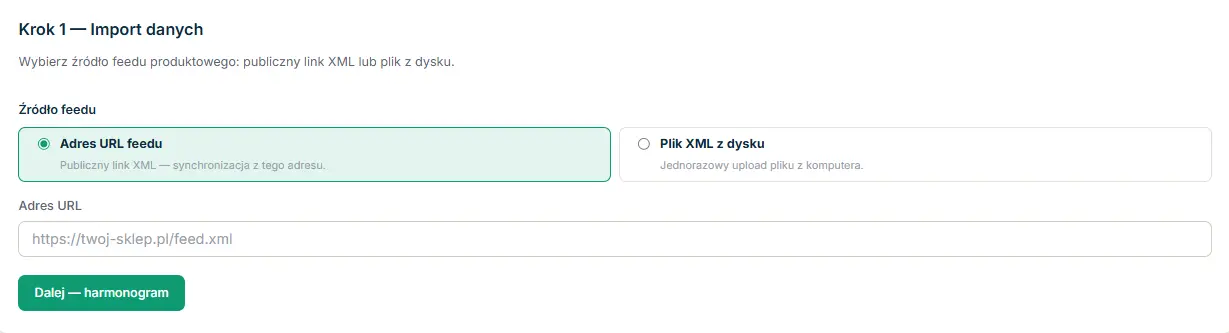
Stage 2 - Quality audit
After import, Snomi calculates the audit automatically. You open Catalog quality and see three rings: GMC completeness, data quality against Google thresholds, and AI readiness - plus the overall score.
The audit shows not only a score, but what to fix first: which rules are below the Google threshold, how many products each gap affects, and - importantly - whether you can fix it in Snomi or it needs store-side data (for example new images or GTIN codes).
This stage is your work map. Instead of optimizing blindly, you see where the biggest gains are. You can also export the audit to PDF - for a client report or your own documentation.
Details: Quality dashboard - how to read the three rings.
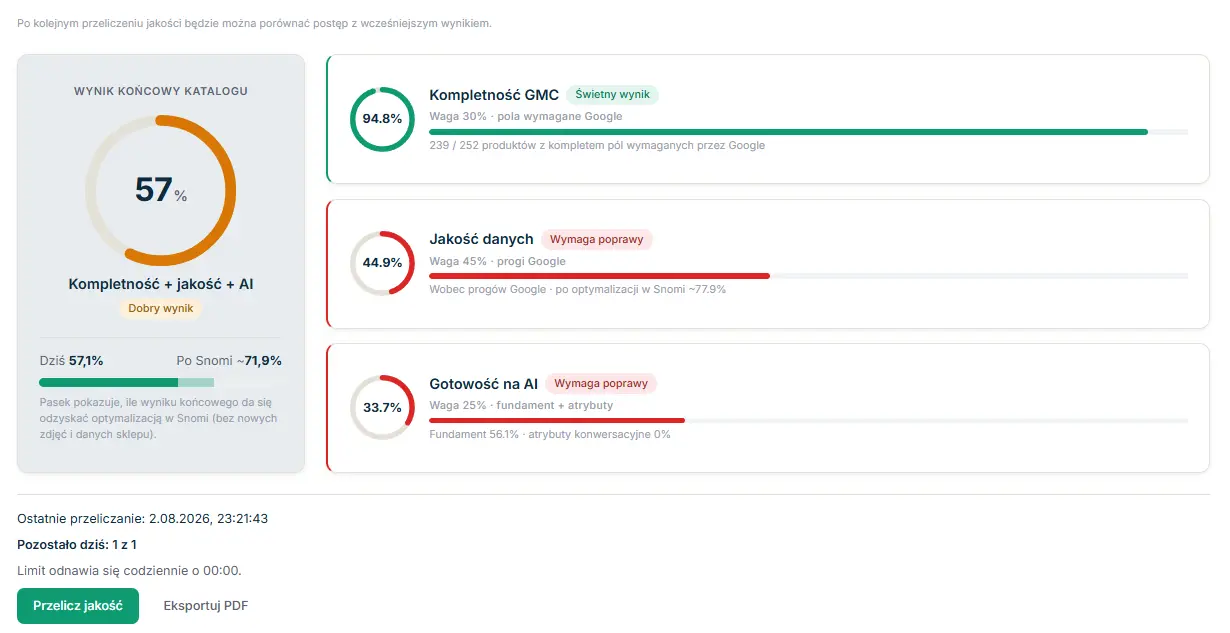
Stage 3 - AI optimization
Now you improve the data. You have three approaches, depending on scale:
For single products - open the product card and generate attribute proposals there. Good to start with, so you see how AI handles your catalog.
For many products at once - use the AI queue: add products, generate in bulk, then review and accept proposals. The queue splits results into tabs (Pending, Needs attention, Ready), so you can separate what is ready to accept from what needs attention.
For the whole catalog - run Optimizer Agent, which fills gaps attribute by attribute. You pick an attribute (for example descriptions), see a credit estimate, and the agent generates one proposal for each product with a gap.
Whatever the method, one rule applies: AI proposes, you accept. Nothing is saved to the feed without your decision. Values you previously refined manually (or locked with Lock) are protected - AI leaves them alone.
Details: AI queue, Optimizer Agent, Field locks (Lock).
Stage 4 - Image validation
Images are a separate quality dimension that AI cannot fix - but Snomi helps you assess them. On the Image validation page you run a scan that fetches images from the feed and checks dimensions against Google thresholds.
The result splits products into three groups: images ready (≥1500 px), meeting the minimum (500-1499 px), and too small (<500 px - risk of rejection by Google). You can also download a ZIP pack of reworked 1500×1500 px images to upload manually in the store.
This stage is optional in every cycle, but worth doing at least once - images below the threshold are a common reason for weak visibility that a text audit will not catch.
Details: Image validation.
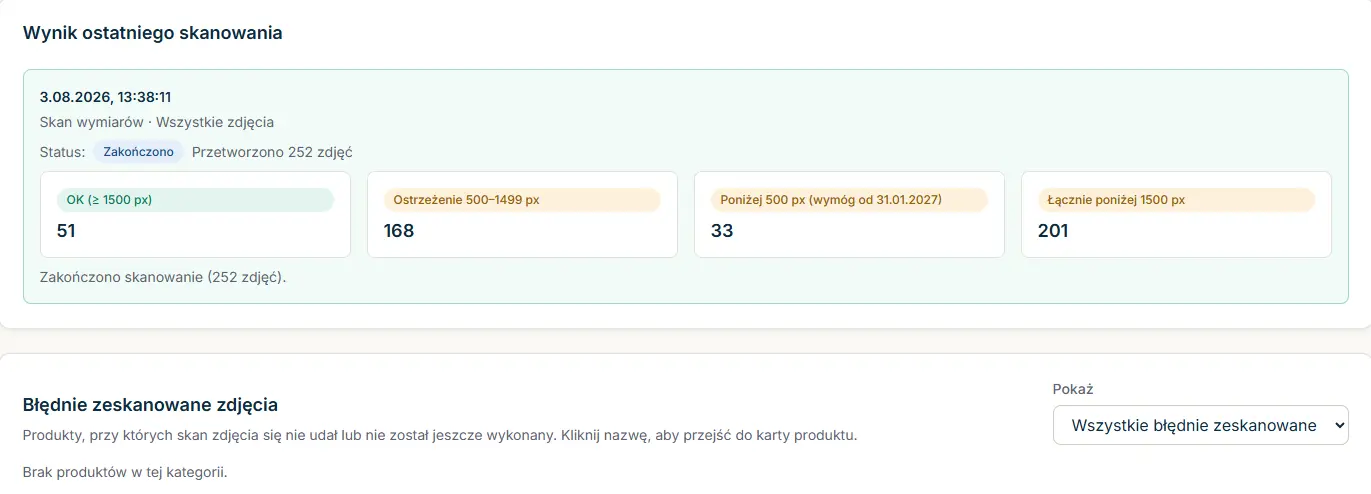
Stage 5 - Export to Merchant Center
Finally you send the ready feed to Google. On the Export page you have two paths:
Download XML file - a one-off file you upload manually in Merchant Center.
Permanent URL - an address you connect in Merchant Center as a supplemental feed. This is the more convenient option: Google fetches a fresh feed on every sync, so your fixes update automatically. The link is off by default - turn it on on the export page when you are ready to connect it in Merchant Center.
You connect the Snomi feed in Merchant Center as a supplemental that overrides primary feed data without changing it. That way you roll out fixes without any changes in the store system.
One important note on first connect: if you had your own supplemental feed in Merchant Center with manual fixes, turn it off - otherwise two supplementals will stack. Snomi already loaded your fixes (stage 1), so the Snomi feed includes them.
Details: How to connect the Snomi feed in Google Merchant Center, Turn off your existing supplemental in GMC.
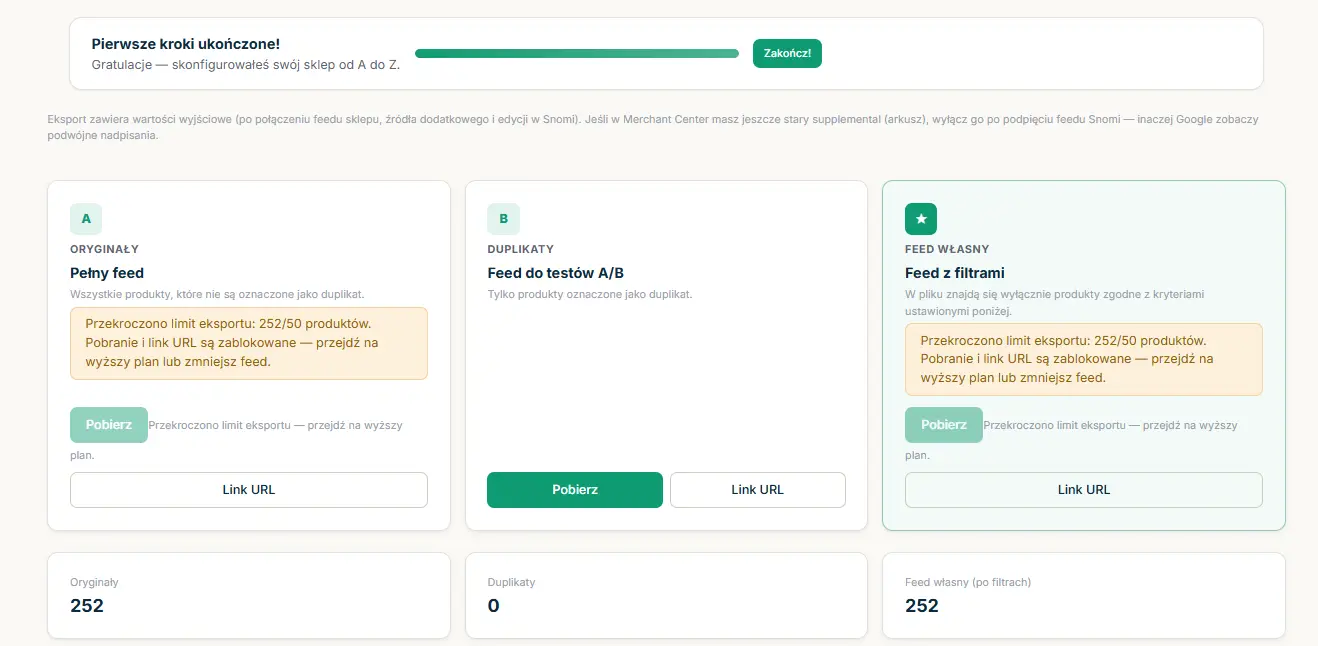
What next - a cycle, not a one-off
Feed optimization is ongoing work, not a one-time action. After the first full path:
- New products appear on later syncs - the audit shows their gaps, Optimizer Agent fills them.
- Quality score you recalculate to see progress versus the previous state.
- The feed in Merchant Center updates on its own if you connected a permanent URL - you do not need to export manually.
In practice, after everything is set up, you return to Snomi mainly to accept proposals for new products and check whether quality is rising.
Frequently asked questions
Do I have to go through all five stages every time?
No. You walk the full path once at rollout. Later you mainly return to stage 3 (optimizing new products) and periodically to stage 2 (checking the score). Import and export run automatically if you set up sync and a permanent URL.
In what order should I optimize the product feed?
The audit (stage 2) suggests the order. Start with gaps that affect the most products and that you can fix in Snomi - the audit marks them as “Fix in Snomi”. Gaps that need store-side data (images, GTIN) leave for a separate stage.
Can I skip image validation?
Yes, stage 4 is optional in a single cycle. Still worth doing at least once - undersized images are a common reason for weak visibility that a text audit does not show.
How long does the full path take?
It depends on catalog size. Import and audit take minutes. Optimization with Optimizer Agent on a large catalog can take longer because it generates proposals for many products - but it runs in the background; you do not have to sit with it.