
Snomi is a tool that prepares your store's product feed for Google Shopping and for AI-powered search in Google AI Mode, Gemini, and AI Overviews. It loads your product catalog, checks quality against official Google Merchant Center benchmarks, improves data with AI, and sends a ready feed back to Google. Everything in one place, without touching your store system.
This article shows what working in Snomi looks like and how the stages connect. Each stage has its own detailed article.
What is Snomi for?
Snomi solves one problem: product data in a feed is rarely as good as it could be. Titles are often too short, descriptions thin, and attributes that Google and AI systems use to understand and recommend a product are missing. Manually fixing thousands of items is not practical, and a weak feed means worse visibility in Shopping and in AI answers.
Snomi automates that work: it audits the catalog against Google thresholds, fills gaps with AI, and lets you export the improved feed without touching the store database.
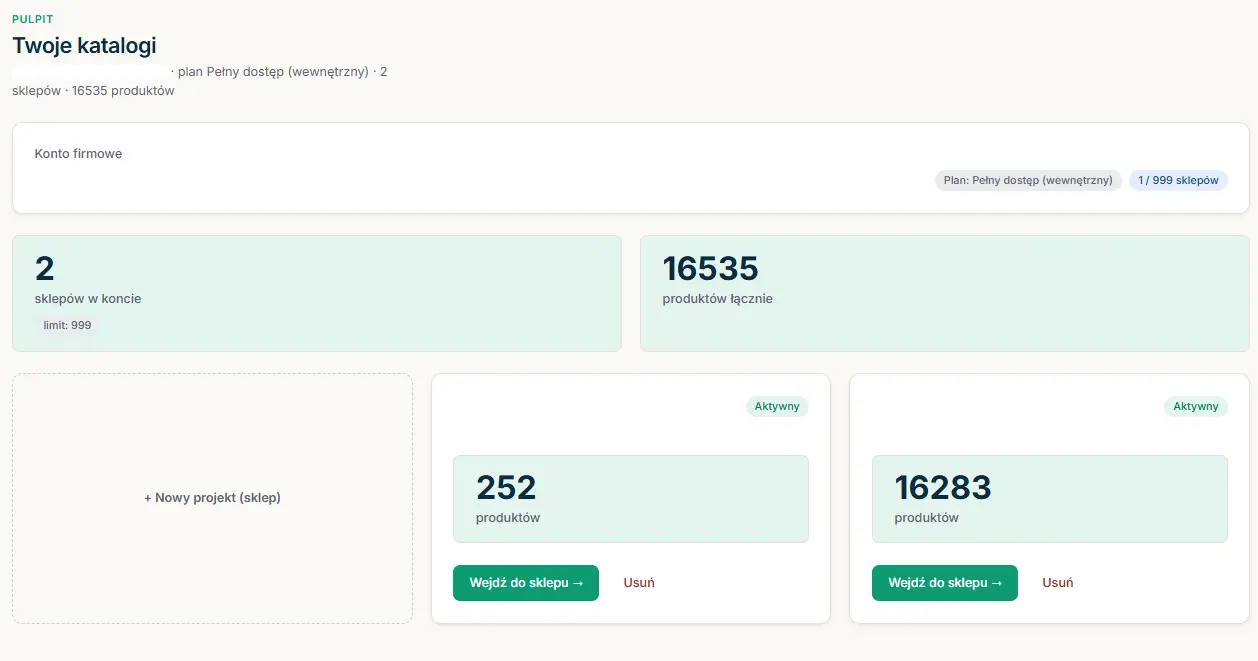
How Snomi works - four stages
Work in Snomi follows a cycle: feed → audit → optimization → export. Below is a short overview of each stage.
1. Feed import
You start by loading the catalog. You provide a link to the store's XML feed or upload a file. Snomi saves the loaded data as source values - a baseline you can always return to. If you already have a supplemental feed in Google Merchant Center with manual fixes, Snomi loads it with the primary feed so the audit sees the real catalog state, not only the base feed.
You can sync the catalog automatically on a schedule. Snomi also watches for anomalies - if a large share of products suddenly disappears during sync, the import is paused for your decision instead of quietly overwriting the catalog.
Details: How to connect your store XML feed and Importing a supplemental feed.
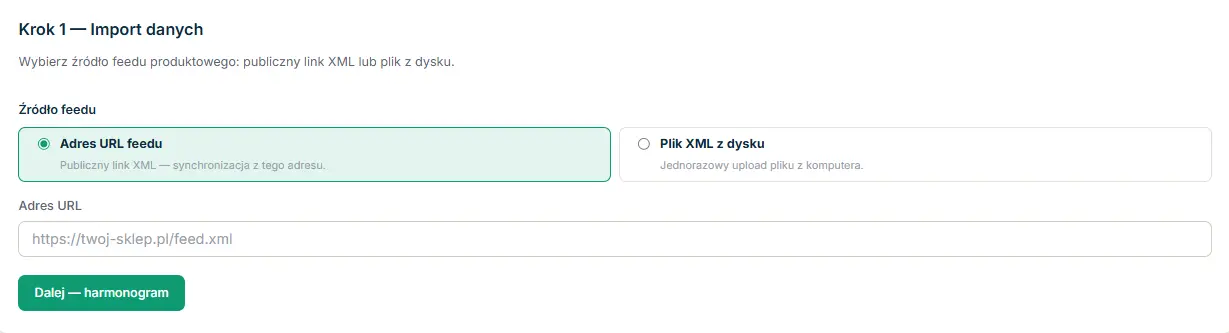
2. Quality audit
After import, Snomi scores the catalog against Google thresholds. The quality dashboard shows three dimensions: completeness (whether products have fields Google requires), data quality (how the catalog compares to Google benchmarks - title and description length, GTIN coverage, and more), and AI readiness (how well the feed is prepared for conversational search).
The audit does not stop at a score. It shows which issues you can fix in Snomi and which need data from the store side (for example new images or GTIN codes), and how many points you can recover. You can export the result to PDF - useful for a client report.
Details: Quality dashboard - how to read the three rings.
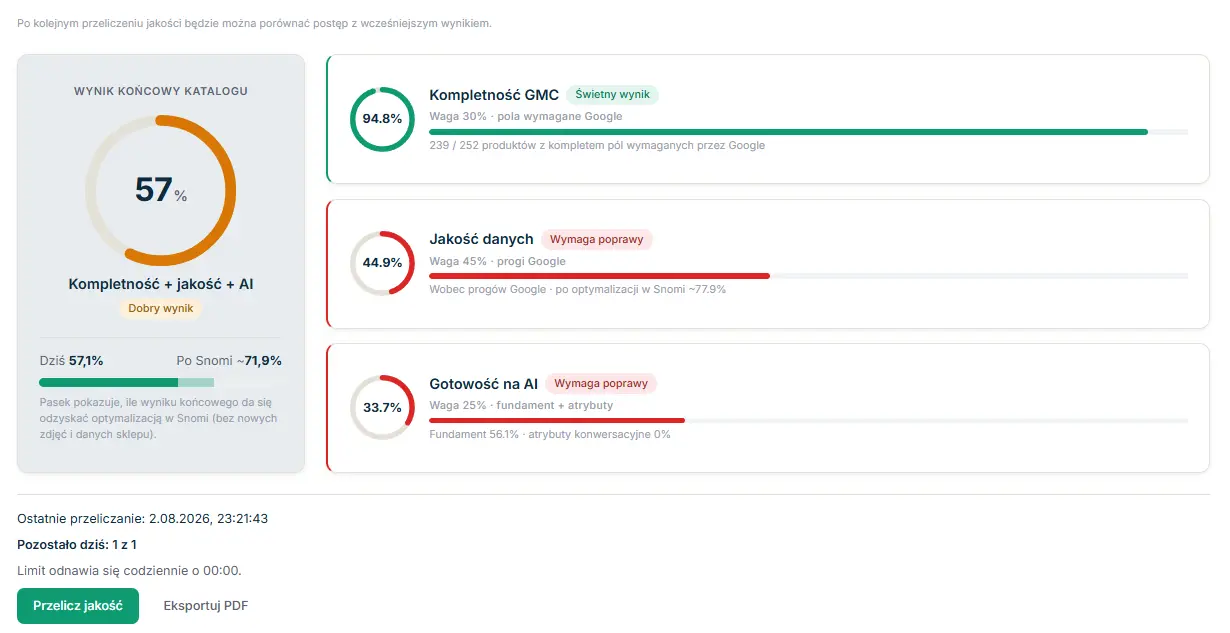
3. AI optimization
This is where you improve the data. You can edit products manually or hand the work to AI - one product at a time on the product card, in bulk through the queue, or with Optimizer Agent, which fills gaps across the whole catalog, attribute by attribute. AI proposes; you decide: nothing is saved without your acceptance.
Snomi generates both classic fields (titles, descriptions, categories) and AI attributes - question-and-answer pairs (question_and_answer), product_detail, and product_highlight, which AI systems use to match a product to a shopper's query.
Important rule: Snomi recognizes what you already optimized and does not touch it. Values you refined manually are protected - AI fills gaps; it does not overwrite your work.
Details: AI queue and Optimizer Agent.
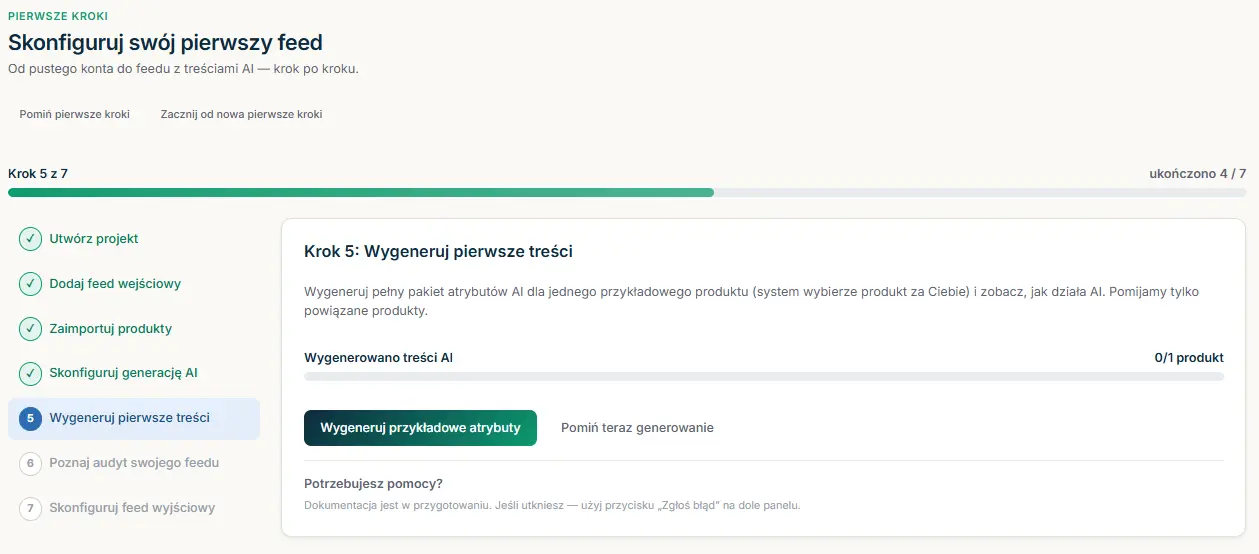
4. Export
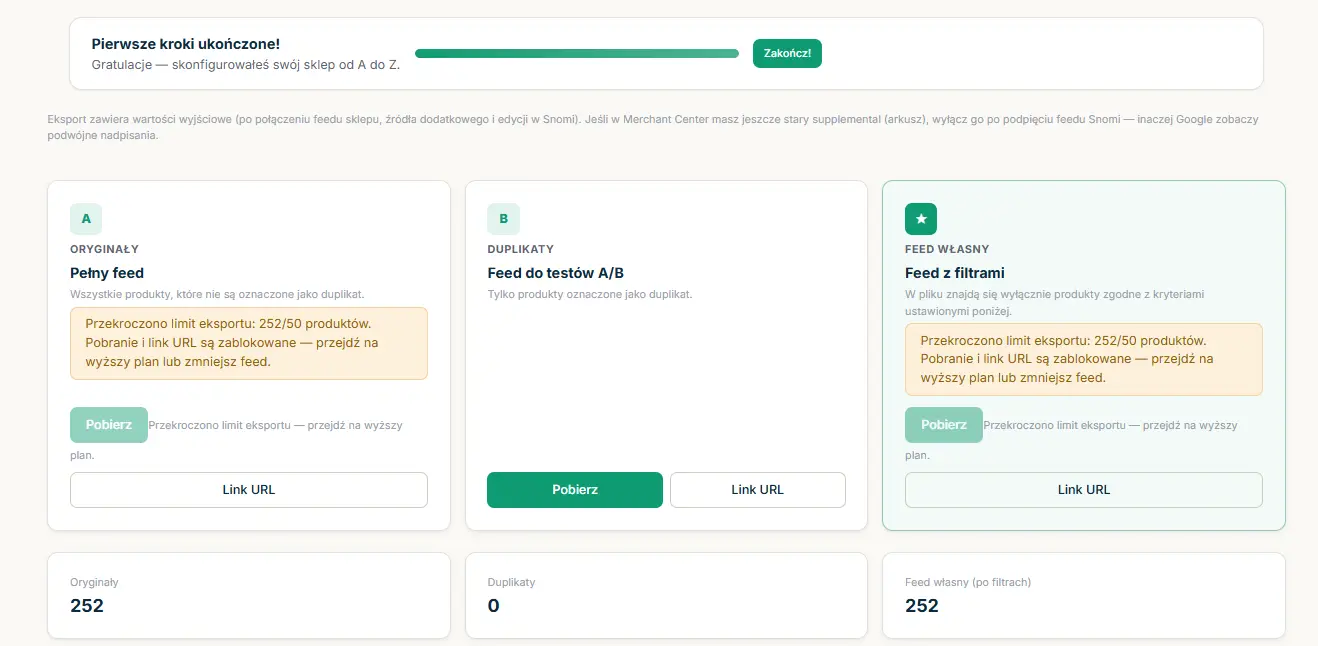
Finally you send the improved feed back to Google. Snomi provides it as a downloadable file or a permanent URL that you connect in Merchant Center as a supplemental feed - it overrides base data without changing the store's primary feed. That way you can roll out fixes without any changes in the e-commerce system.
Details: How to connect the Snomi feed in Google Merchant Center.
What Snomi does not do?
It helps to know the boundaries from the start:
- It does not change images in the feed. Snomi validates image dimensions and lets you download reworked 1500×1500 px files to upload manually in the store, but it does not replace
image_linkURLs in the feed. - It does not edit the store database. All work happens on the feed. Fixes reach Google through a supplemental feed, not through changes in the e-commerce system.
- It does not send anything to Google without your acceptance. Accepted values are saved in Snomi and reach the output feed only on export or sync.
Who is Snomi for?
Snomi is multi-user and multi-store - one organization can have many stores, a team with roles, and shared plan limits. In practice it is used by:
- Store owners who want better visibility in Google Shopping and AI results.
- Google Ads and PPC specialists who care about Merchant compliance, custom labels, and A/B tests.
- E-commerce agencies managing many catalogs, with access split and billing at the organization level.
Where to start?
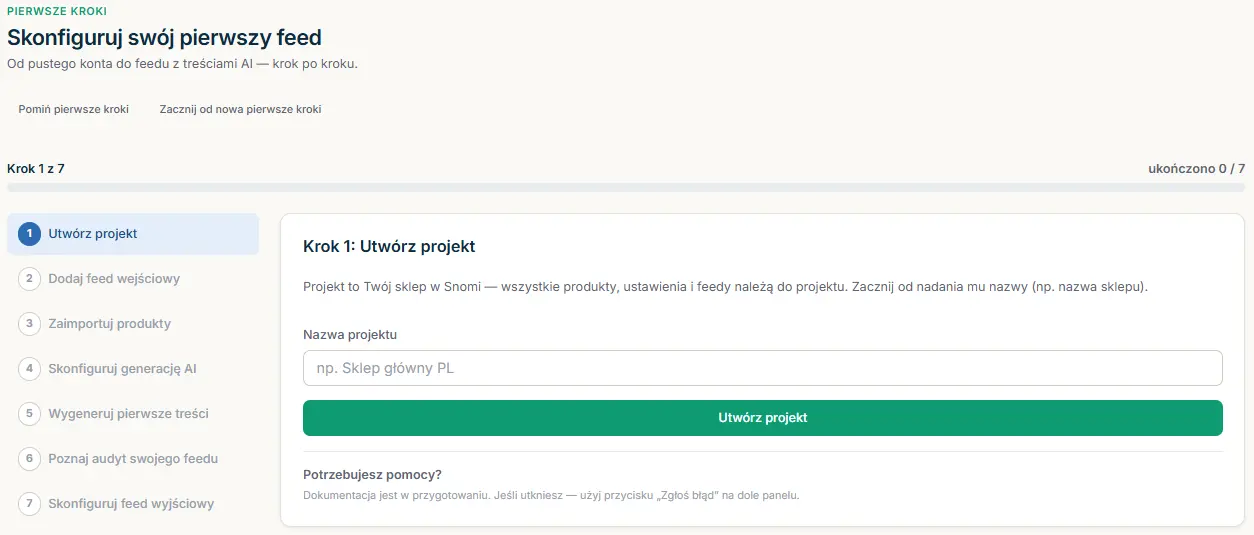
The simplest path is the Getting started hub in the panel - it walks you through registration, importing the first feed, and the first optimization step by step. If you prefer to see the full path at once, read Typical workflow: from import to a feed in Merchant Center.
Frequently asked questions
Does Snomi change anything in my store?
No. Snomi works only on the product feed. Fixes reach Google through a supplemental feed in Merchant Center, with no changes to your store system or product database.
Do I need to know feeds to use Snomi?
No. Snomi guides you through import, shows what needs improvement, and proposes ready values for you to accept. Basic knowledge of Google Merchant Center helps at export, but it is not required to work with the catalog.
Will AI overwrite data I already fixed manually?
No. Snomi recognizes values you previously optimized and leaves them alone. AI fills gaps, and every proposal requires your acceptance before it is saved.
Which systems does Snomi optimize the feed for?
Google Shopping (Merchant Center) and AI-powered search - Google AI Mode, Gemini, and AI Overviews. Snomi covers both classic Merchant fields and AI attributes used by AI systems.